

本页目录
一款贴心的 WordPress 主题如果准备有通知栏,那就会让用户感到更加的舒适,来看看这个 WordPress 开发方法,给网站添加顶部通知栏。
方法:
制作了一段函数,放在 functions.php 的<?php 下面:
//顶部通知栏if ( ! function_exists( 'lifet_function_notice' ) ) : /** * 简单的通知栏 */ function lifet_function_notice() { if (!isset($_COOKIE['close_top_notice'])){ ?> <div id="top_notice" class="black"> <div class="top_notice_close" onclick="pushdownclose();"></div> <div class="top_notice_text_box"> <span class="top_notice_txt" onclick="pushdownyes();"> 简单的通知 </span> <div class="header_button"> <!--关闭按钮--> <button class="top_notice_button" onclick="pushdownclose();"> X </button> <!--了解按钮--> <button class="top_notice_button"> <a href="#"> 关闭 </a> </button> </div><!--.header_button--> </div> </div>
<script> //Set Cookies function setCookie(c_name,value,expiredays){ var exdate=new Date() exdate.setDate(exdate.getDate()+expiredays) document.cookie=c_name+ "=" +escape(value)+ ((expiredays==null) ? "" : ";expires="+exdate.toGMTString()) }
function pushdownyes(){ setCookie("close_top_notice", true, 30); window.location = "#"; } function pushdownclose(){ setCookie("close_top_notice", true, 5); document.getElementById('top_notice').style.display="none"; } </script>
<?php }
echo " <style type='text/css'> /** 顶部通知栏 **/ #top_notice{ font-weight: bold; font-size: 12px; padding: 16px; color: #fff; background-color: #444 } .top_notice_text_box{ max-width: 980px; margin: 0 auto; padding: 0 6px; }
.top_notice_close{ cursor: pointer; float: right; font-size: 18px; margin-right: 13px; padding: 5px 0 3px; }
.header_button{ float:right; } .top_notice_button{/*通告栏按钮样式*/ margin-left: 10px; padding: 4px 16px;; float: right; background-color: #f5f5f5; cursor:pointer } .top_notice_button a{ text-decoration:none; }
.top_notice_txt a{ color:#fff; }
</style>"; }endif;如何使用?
在你需要的地方,例如在主题根目录下header.php的</body>下面添加以下代码即可调用。
<?php lifet_function_notice();//通知?>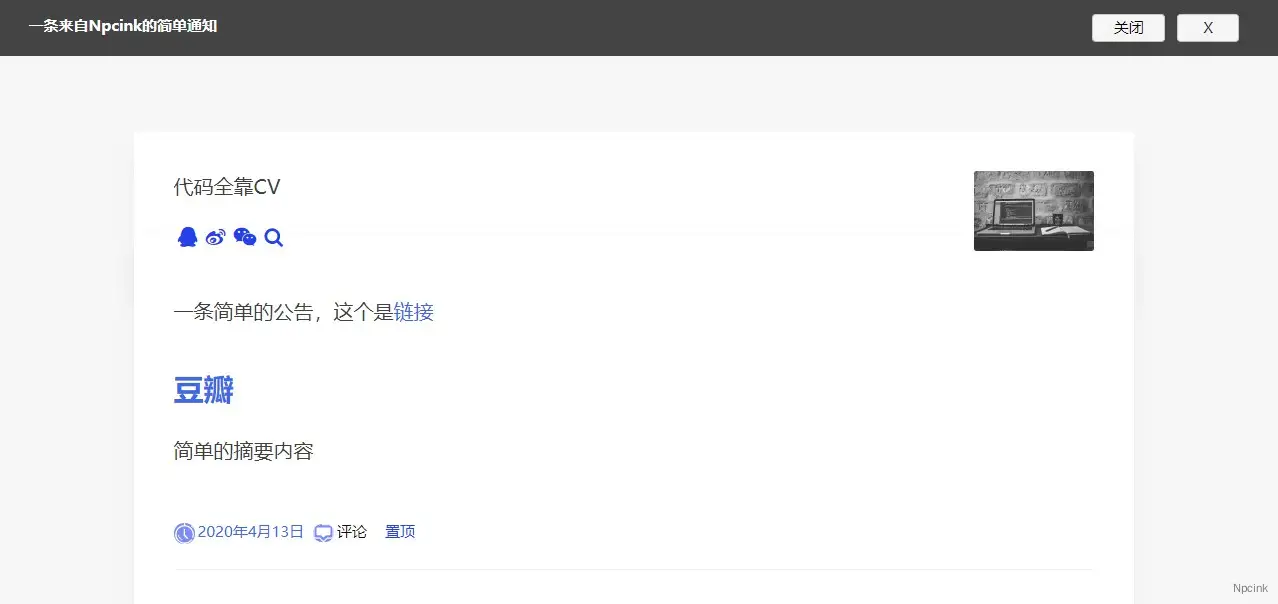
开始介绍:
网站有时需要一些通知来给所有访客,所以我就参考了 Google 的“隐私条款变更通知”来制作了一个适用于任何网页(包括 WordPress )的“ 通知栏 ”
1、首先当然先添加一下外观样式,将下列代码添加至网页的 <style> 或 CSS 文件内(也就是 WordPress 主题目录下的“样式表 (style.css)”)(所有样式均提取于 Google)
/** 顶部通知栏 **/#top_notice{ font-weight: bold; font-size: 13px; zoom: 1; background-color: rgb(66, 114, 219);}
.top_notice_text_box{ margin-left: 12px;}
.top_notice_text{ padding: 8px 12px 6px 0; zoom: 1; color: #fff;}
.top_notice_close{ cursor: pointer; float: right; font-size: 18px; margin-right: 13px; padding: 5px 0 3px; float: right; color: #bcc9e8;}.top_notice_button{ cursor: pointer; display: inline-block; margin-left: 10px; padding: 8px 12px 6px; zoom: 1; color: rgb(188, 201, 232); background-color: rgb(34, 85, 203);}
.top_notice_button:hover{ color: #fff;}2、现在就需要添加 HTML 代码了,我制作的代码是先使用 PHP 判断用户是否存在已阅读的 Cookie,如果没有就显示通告,只需要把如下代码加入网页(也就是“header.php”文件)的 <body> 后方就行啦!(注意把内容修改为你自己需要通知的内容)
<?php if (!isset($_COOKIE['close_top_notice'])){ ?><div id="top_notice"> <div class="top_notice_close" onclick="pushdownclose();"> × </div> <div class="top_notice_text_box"> <span class="top_notice_text">通知内容</span> <div class="top_notice_button" onclick="pushdownyes();">“立刻阅读”按钮Value</div> <div class="top_notice_button" onclick="pushdownclose();">关闭</div> </div></div>
<script>//Set Cookiesfunction setCookie(c_name,value,expiredays){ var exdate=new Date() exdate.setDate(exdate.getDate()+expiredays) document.cookie=c_name+ "=" +escape(value)+ ((expiredays==null) ? "" : ";expires="+exdate.toGMTString())}
function pushdownyes(){ setCookie("close_top_notice", true, 30); window.location = "“立即阅读”跳转的链接";}function pushdownclose(){ setCookie("close_top_notice", true, 5); document.getElementById('top_notice').style.display="none";}</script><?php } ?>总结
1、其实这个通知栏发挥空间可以很大,例如做成“最新文章”或“警告栏”等 
2、有问题可以回复哦 
在 CSS #top_notice{ 加入 position: fixed; 应该就可以固定在顶部啦~
© 版权声明:本文章采用“姓名标示-非商业性-相同方式分享 4.0 国际(CC BY-NC-SA 4.0)”于“畅想资源”发布,转载时须以相同方式发布并注明“原文链接”!
本文固定链接:https://www.arefly.com/zh-cn/WordPress-top-notice/
题外:
将部分代码改成下方形式,可实现:
关闭浏览器后打开显示
function pushdownyes(){ setCookie("close_top_notice", true); window.location = "“立即阅读”跳转的链接";}function pushdownclose(){ setCookie("close_top_notice", true); document.getElementById('top_notice').style.display="none";}参考链接: